3 MIN READ
Floors, walls & desk styles
Mix and match finishes, find your room’s theme, or bring your own backdrop.
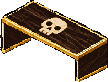
This guide covers features in the game today.
Floors and walls are separate choices. A desk design changes its look, not your career level. Your background changes the space around the room.
IN THIS GUIDE
Floors and walls are separate choices
Open Shop and choose Floors or Walls. Buying a floor does not force you to use its matching wall. You can mix finishes from different collections or build a coordinated room.
Decor collections with matching surfaces offer Matching floor & walls. This is a shortcut to the relevant finishes; check each item's price, unlock requirement, and owned state before buying.
Apply a finish
- Open the relevant Floors, Walls, or Desks section in Shop.
- Look at the preview and check the required desk level and Cash cost.
- Buy the design if it is available and you do not own it.
- Use the control on an owned design to apply it. The selected design is marked as equipped.
- Return to your office to check it with your furniture and lighting.
Build a mood, not a matching checklist
A matching floor and wall give you an easy starting point. Then add contrast: a soft rug under metal equipment, plants beside a dark desk, or one unusual collectible in an otherwise quiet room.
Browse collections for ideas such as dark fantasy, Sherwood, disco, Persian and Levantine interiors, Hamptons golf, white robotics and dark futuristic pieces. You can mix their items; choosing one collection does not lock the room to that theme.
Desk appearance is not desk level
Desk designs change how your desk looks. They do not erase its career progress or turn a low-level office into a high-level one.
A decorative desk finish, a numbered marketplace desk's equipment grade, and your account's career level are different things. Read the description before purchasing a desk.
Use your own background photo
The Backgrounds section changes the scene around the office, rather than its floor or walls. You can choose a game background or upload a personal image.
- Open Shop → Backgrounds, or Change background from Equipment & team.
- Choose Upload photo and select a JPG, PNG, or WebP up to 12 MB.
- Wait for the upload to finish. The game resizes the image for faster loading.
- Use Replace photo to change it later, or Use saved photo to return to the one already uploaded.
If a finish is locked or sold out
A locked finish needs the desk level shown on its card. A sold-out finish cannot issue another ordinary shop copy. You can still use finishes you already own.
A link to player listings searches for supported tradeable copies. It does not guarantee that another player is currently selling that design.